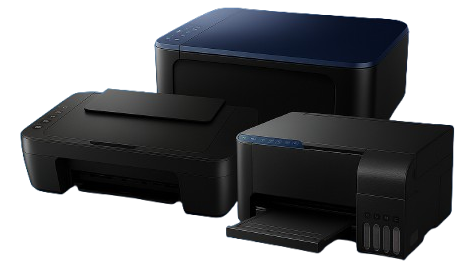
How Wireless Printing Works
Wireless printers connect to your local network instead of using a direct cable. Once connected, any device on the same network can send print jobs without physical connection.
Requirements Before Starting Setup
- Stable internet connection
- Working Wi-Fi router
- Network name (SSID)
- Wi-Fi password
- Computer, laptop, or mobile connected to the same network
Initial Printer Preparation
Before connecting:
- Ensure the printer is powered on
- Load paper properly
- Install ink or toner correctly
- Confirm there are no hardware errors
Method 1: Connect Using Printer Display Panel
- Open printer settings menu
- Select network or wireless option
- Choose wireless setup wizard
- Select your Wi-Fi network
- Enter password
- Confirm connection
Once connected, the wireless indicator should remain steady.
Method 2: Connect Using Temporary USB Cable
- Connect printer to computer via USB
- Open printer settings on system
- Choose network setup option
- Select Wi-Fi network
- Enter password
- Disconnect USB after setup
Adding Printer to Windows
- Open Settings
- Go to Devices
- Select Printers & Scanners
- Click “Add Printer”
- Choose your printer
- Complete installation
Adding Printer to macOS
- Open System Settings
- Go to Printers & Scanners
- Click “Add Printer”
- Select available printer
- Confirm setup
Connecting Printer to a New Wi-Fi Network
- Reset network settings on printer
- Open wireless setup menu
- Select new Wi-Fi network
- Enter updated password
- Confirm connection
Printer Showing Offline – Meaning
An offline status means the computer cannot communicate with the printer, even if it is powered on.
Common Causes
- Network interruption
- Router restart
- Printer in sleep mode
- IP address conflict
- Incorrect default printer
Steps to Fix Offline Issue
- Restart printer
- Restart computer
- Restart router
- Check Wi-Fi connection on printer
- Set printer as default
- Remove and re-add printer
How to Check Network Status
Print a network configuration page to view IP address and connection status.
Ensure printer and computer are on the same network range.
Improving Weak Wi-Fi Signal
- Place printer closer to router
- Remove obstacles
- Avoid interference (microwave, cordless devices)
- Switch to less crowded Wi-Fi channel
Connecting Printer to a Laptop
The process is same as desktop. Ensure both devices are on same Wi-Fi network and add printer from system settings.
Connecting Printer to Mobile Device
- Connect phone to Wi-Fi
- Open document or image
- Tap print option
- Select printer
- Confirm print
Printer Connected But Not Printing
- Check paper jam
- Verify ink/toner levels
- Clear stuck print jobs
- Restart print spooler (Windows)
Resetting Printer Network Settings
- Open network settings
- Select reset or restore defaults
- Confirm reset
- Reconnect to Wi-Fi
Understanding Wireless Security Types
Most printers support WPA2/WPA3. Ensure router uses compatible security mode to avoid connection issues.
Common Setup Mistakes
- Wrong Wi-Fi password
- Connecting to guest network
- Using different frequency bands (2.4GHz vs 5GHz)
- Firewall blocking connection
USB vs Wireless Printing
USB provides stable direct connection but limits flexibility.
Wireless allows multiple devices without cables.
Maintaining Stable Printer Performance
- Keep firmware updated
- Restart printer occasionally
- Avoid network congestion
- Clean print heads regularly
When Additional Configuration Is Needed
In advanced environments, you may need:
- Static IP configuration
- Router permission adjustments
Important Disclaimer
This content is for general informational purposes only. It is not affiliated with or endorsed by any printer manufacturer.
Conclusion
Wireless printing offers flexibility and convenience when configured correctly. Following proper setup steps and maintaining a stable network helps avoid most issues.
Frequently Asked Questions
1. How long does setup take?
Usually 5–15 minutes depending on network and device.
2. Printer not finding Wi-Fi?
Ensure router is active, move printer closer, and refresh network list.
3. Is internet required?
Not always. Devices must be on same network to print.
4. Why does printer disconnect often?
Weak signal, interference, or outdated settings.
5. Can multiple devices use one printer?
Yes, if all are connected to the same network.
Disclaimer: This content is for general informational purposes only. We are an independent service provider and not affiliated with any printer brand.