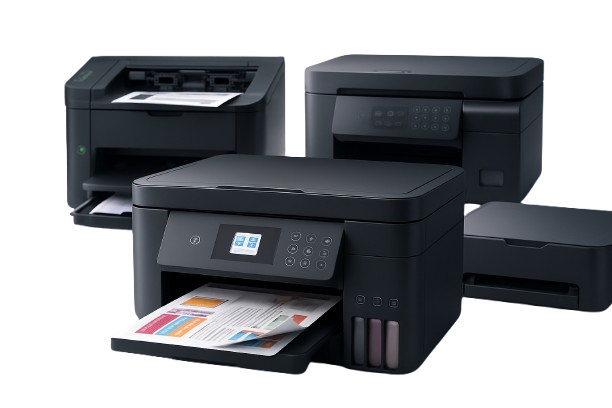
This guide explains how to set up an Epson printer, connect it to a wireless network, and resolve common connectivity and printing issues. The steps apply to most Epson Wi-Fi-enabled printers.
How Epson Wireless Printing Works
Epson printers connect to your Wi-Fi router and receive an IP address. Once connected, devices on the same network (laptop, desktop, mobile) can send print jobs wirelessly.
Before You Start (Requirements)
- Epson printer powered on
- Working Wi-Fi router
- Network name (SSID)
- Wi-Fi password
- Device connected to same network
Preparing Your Epson Printer
- Load paper correctly
- Install ink cartridges properly
- Ensure no error lights/messages
- Place printer within Wi-Fi range
Method 1: Setup via Epson Control Panel
- Open Setup / Network Settings
- Select Wi-Fi Setup
- Choose Wi-Fi Setup Wizard
- Select your network
- Enter password
- Confirm connection
Once connected, the Wi-Fi indicator stays steady.
Method 2: Setup Using Epson Software (Recommended)
- Download Epson setup utility (from official site)
- Run installer on your computer
- Select Wireless Connection Setup
- Follow on-screen instructions
- Printer auto-connects to Wi-Fi
Method 3: Using WPS Button (Quick Setup)
- Press WPS button on router
- On printer, select WPS Setup
- Wait for automatic connection
Add Epson Printer to Computer
Windows
- Settings → Devices
- Printers & Scanners
- Click Add Printer
- Select Epson printer
- Install drivers
macOS
- System Settings → Printers & Scanners
- Click Add Printer
- Select Epson device
- Confirm installation
Epson Printer Showing Offline
Common Causes
- Printer not connected to Wi-Fi
- Wrong default printer selected
- Router restart / network drop
- Driver communication issue
Fix Steps
- Restart printer
- Restart computer
- Restart router
- Set Epson as default printer
- Remove and re-add printer
Changing Wi-Fi Network on Epson Printer
- Go to Network Settings
- Select Wi-Fi Setup
- Choose new network
- Enter updated password
- Confirm connection
Epson Printer Not Found During Setup
- Ensure both devices are on same Wi-Fi
- Disable VPN or guest network
- Move printer closer to router
- Temporarily disable firewall
Weak Signal / Connection Drops
- Place printer near router
- Avoid walls/metal obstructions
- Use 2.4GHz if compatibility issues
- Restart router regularly
Epson Printer Connected But Not Printing
- Check paper tray
- Verify ink levels
- Clear print queue
- Restart print spooler (Windows)
Print from Mobile (Epson)
- Connect phone to Wi-Fi
- Use Epson iPrint app
- Select printer
- Choose file/photo
- Print
Reset Epson Network Settings
- Open Setup → Network Settings
- Select Restore Defaults
- Confirm reset
- Reconnect to Wi-Fi
USB Setup (Alternative)
- Connect printer via USB
- Install Epson drivers
- Configure Wi-Fi from software
- Disconnect USB after setup
Common Epson Setup Mistakes
- Wrong Wi-Fi password
- Connecting to guest network
- Using unsupported Wi-Fi band
- Skipping driver installation
Advanced Troubleshooting
- Assign static IP to printer
- Update Epson firmware
- Check router firewall settings
- Enable network discovery
Performance Tips
- Keep firmware updated
- Restart printer occasionally
- Avoid network congestion
- Clean print heads regularly
When Epson Printer Keeps Disconnecting
- Change Wi-Fi channel
- Reduce connected devices
- Update router firmware
- Reset printer network
Check Epson Network Status
Print network report from printer settings to verify:
- IP address
- Signal strength
- Connection status
Disclaimer
This guide is for general informational purposes only. We are not affiliated with or endorsed by Epson.
Conclusion
Epson printers are easy to set up and use when properly configured. Following correct setup steps and maintaining a stable network ensures reliable printing performance.
Frequently Asked Questions
1. Why is my Epson printer offline?
Usually due to network issues or incorrect default printer settings.
2. How do I connect Epson printer to Wi-Fi?
Use Wi-Fi Setup Wizard from printer settings or Epson setup software.
3. Why is my Epson printer not detected?
Check network connection, firewall, and ensure same Wi-Fi network.
4. What to do after changing Wi-Fi password?
Reconnect printer using updated network credentials.
5. How long does Epson setup take?
Typically 5–15 minutes.
Disclaimer: This content is for general informational purposes only. We are an independent service provider and not affiliated with any printer brand.